

Wix Bookings
Official integration, by Callizy
The customer calls, the booking is in Wix
Salon, spa, clinic, studio: if your bookings live on your Wix site, the AI agent reads the real free slots there during the call and books the requested service, at its duration, with the customer’s name and number. The booking shows up in your Wix Bookings calendar, with the others.
- Plans
- Team and Business, included
- Category
- Appointments
- Tool
- Wix Bookings
Studio ÉclatFacialFacial
Émilie Côté
ManicureManicure
Marie Tremblay
PedicurePedicure
Karim Benali
BrowsBrows · Julie
ConsultationConsultation
Nadia Roy
FacialFacial
Sophie Lavoie
NewCall from Sophie Lavoie
Tuesday, 9:12 p.m. · the AI agent answers
Signature facial · Thursday 2 p.m.
Booked in Wix
Text to Sophie
Your facial is confirmed for Thursday at 2 p.m. See you soon!
One call, start to finish
Tuesday, 9:12 p.m. The salon is closed.
AI agent · 0:00
Studio Éclat, hello! How can I help you?Customer · 0:03
Hi, I’d like a facial this week.AI agent · 0:07
Of course. The signature facial takes one hour. Which day works for you?Customer · 0:12
Thursday, in the afternoon if possible.AI agent · 0:15
On Thursday, I have 2 p.m. or 4:30 p.m.Customer · 0:19
2 p.m. is perfect.AI agent · 0:21
You’re booked for Thursday at 2 p.m. What name should I put?Customer · 0:24
Sophie Lavoie.AI agent · 0:26
Thank you, Sophie. I’m sending you the confirmation by text. Have a good evening!- In Wix: Thursday 2 p.m., Signature facial, Sophie Lavoie and the phone number.
- Confirmation text received during the call.
- The salon was closed: nobody picked up, the appointment is booked.
Your services, your slots, your Wix calendar
The customer asks for a facial or a manicure: the agent books that service, at the duration set in Wix, on a slot that is really free. It sees bookings made on your site and those added by hand: never two customers at the same time. If you allow it, it also moves or cancels an existing booking, and Wix follows right away.
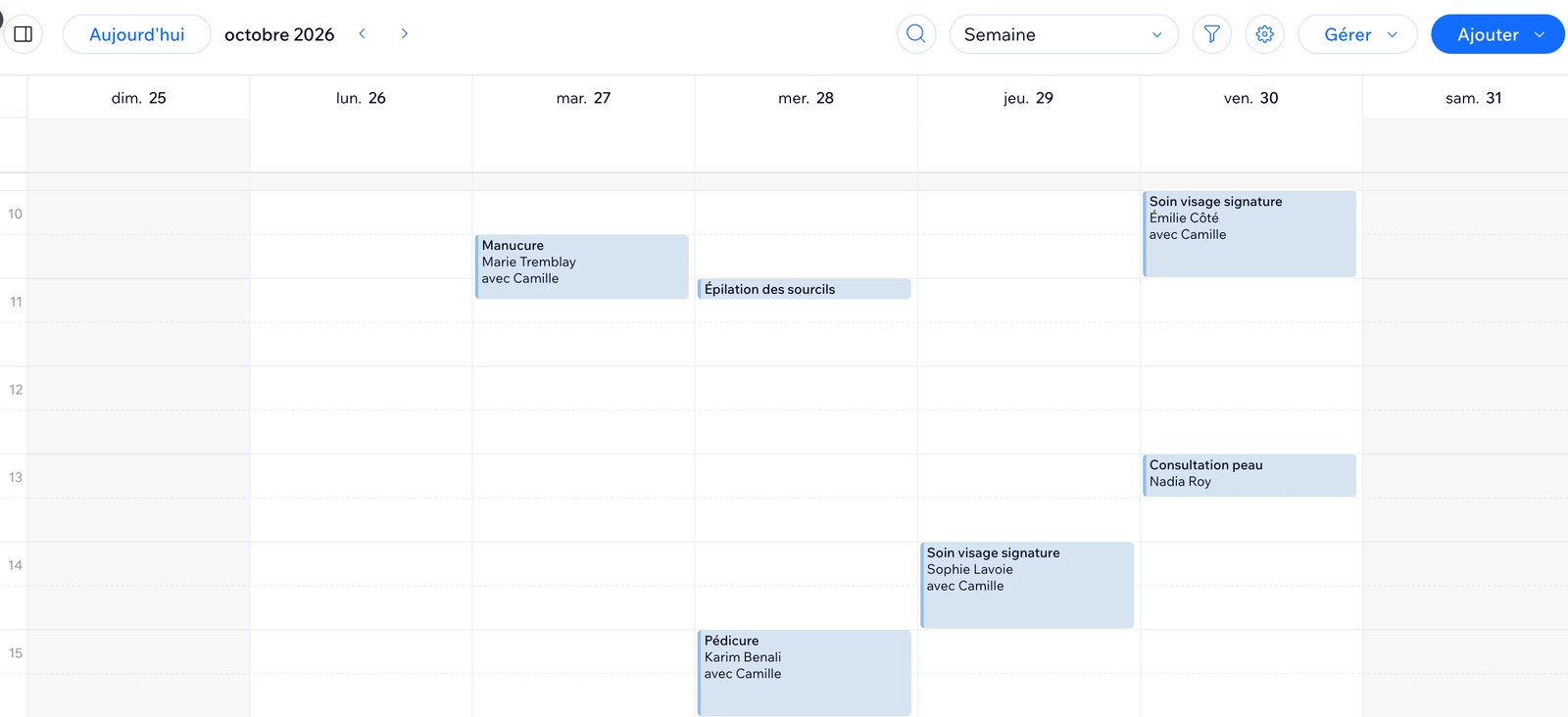
The bookings made by the agent, in your Wix calendar.
Two minutes, once
A manager connects the site, then gives it to the AI agent.
Connect Wix
- 1
Open Callizy calendars
In Callizy, Calendars menu, then Connect a calendar. Pick Wix Bookings and give it a name.
- 2
Add the Callizy app to your site
Wix opens. Pick your site and accept. You come back to Callizy. Nothing to copy.
- 3
Check your services
Callizy lists your bookable services. By default the agent offers them all. In Settings, you can limit it to one service, or one team member.
Give it to the AI agent
- 1
Open the agent
AI agents menu, your agent, Actions tab, Appointment booking row.
- 2
Pick the Wix calendar
Select it and save. Hours and durations come from Wix. From the next call, the agent books.
Wix decides, the agent follows
Services, durations, hours and team are set in Wix. In Callizy, you choose what the agent is allowed to do.
Services offered
All your bookable services, or just one. The duration comes from Wix.
Team member
A specific person, or anyone on the team.
Move and cancel
Whether the agent can change an existing booking, always with a clear “yes” from the customer. Off by default.
Confirmation text
The customer gets the date and time by text as soon as it is booked, during the call, from the number the agent answers on.
Frequently asked questions
You might also want
All integrations
HubSpot
Every call on the right HubSpot record, with the summary

Pipedrive
Every call as a Pipedrive call log, with the recording

Zoho CRM
Every call on the Zoho contact, playable in Zoho

Clio
Every call on the Clio matter, and its time billed

Google Contacts
Your Google contacts and your Callizy address book, always in step

Slack
Missed calls, voicemails and texts, in your Slack channel

Google Calendar
The AI agent books appointments in Google Calendar, during the call

Microsoft 365
The AI agent books appointments in Microsoft 365, during the call

Square Appointments
The AI agent books straight into Square Appointments


Claude, ChatGPT
Callizy in your AI assistant, through the MCP server.