

HubSpot
Official integration, by Callizy
Every call on the right HubSpot record, with the summary
Callizy connects your phone to HubSpot. Every call, voicemail and text is written on the contact, with duration, AI-written summary, transcript and recording. Nothing to type after a call.
- Plans
- Team and Business, included
- Category
- CRM
- Tool
- HubSpot
HubSpot/ContactsMarc Bélanger
Toitures Bélanger
- Phone
- (514) 555-0148
- Lifecycle stage
- Lead
Inbound call · 4 min 12 s
Today, 10:24 a.m. · by Callizy
Summary
Marc wants his warehouse roof redone before winter. He expects a quote by Friday.
Email sent · yesterday
Call from Marc Bélanger
Today, 10:24 a.m. · 4 min 12 s
Summary, transcript and recording
Logged in HubSpot
Both ways, nothing to type
Contacts go both ways: a HubSpot contact reaches Callizy within seconds, a new caller becomes a HubSpot contact. A Callizy card in the record shows the latest exchanges and starts the call.
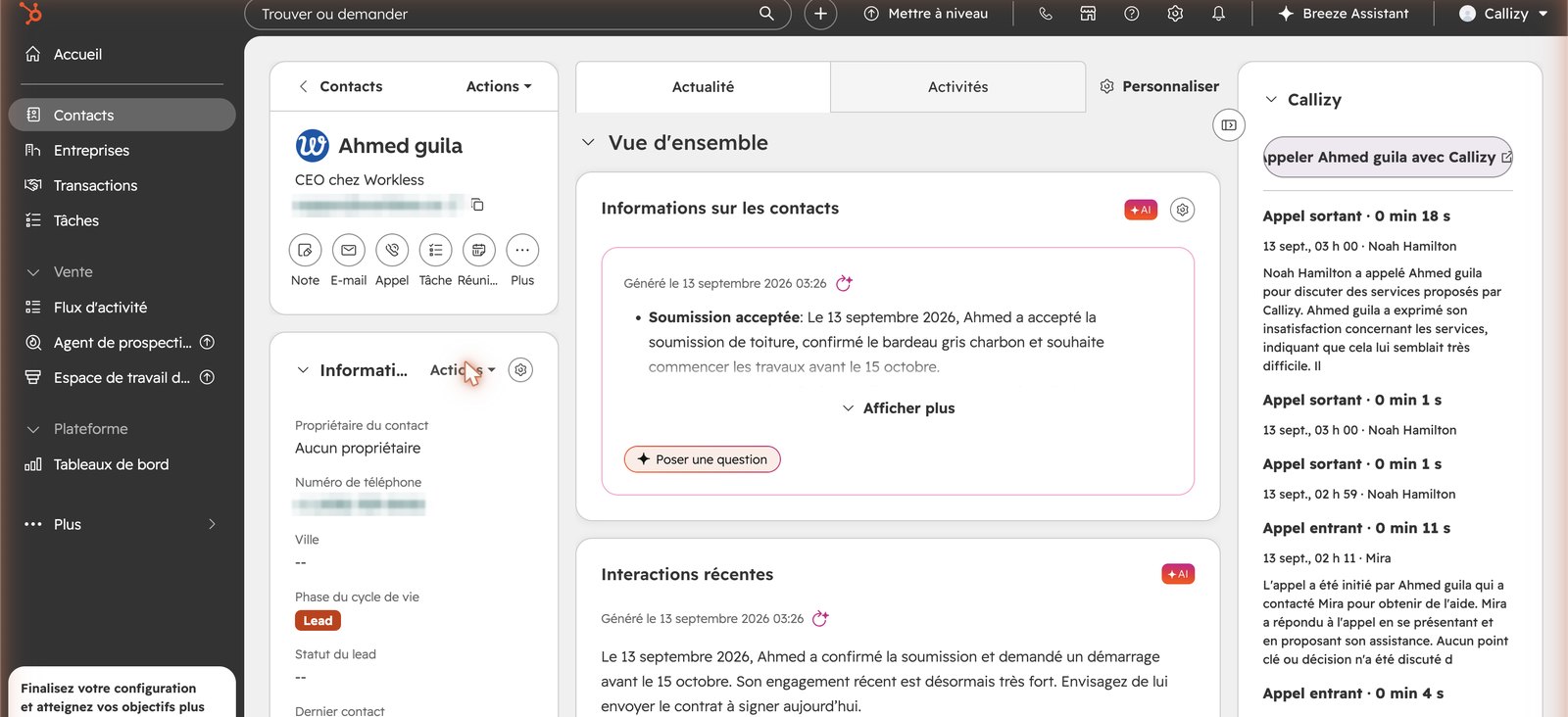
The Callizy card on the record: latest calls, summaries, and the call button.
A manager connects the tool once
After that, every team call is logged on its own.
Connect HubSpot
- 1
Open Callizy integrations
In Callizy, Configuration menu, then Integrations. Click the HubSpot card, then Connect HubSpot.
- 2
Accept in HubSpot
The HubSpot screen opens. Sign in with an admin account and accept. You come back to Callizy and see “Connected to …”.
- 3
That is it
One person connects, for the whole company. After that, every call from every team member is logged. The settings at the bottom of the panel can be changed at any time.
Add the Callizy card to the record
HubSpot requires an admin to add it, once per portal.
- 1
Record customization
In HubSpot: Settings, Objects, Contacts, Record customization tab. The Callizy HubSpot panel has a direct link.
- 2
Default view, add the card
Click Default view, then Add cards, check Callizy, Save. The card appears on every contact record.
You choose what gets logged
In the Callizy HubSpot panel. A manager changes them at any time.
Calls and voicemails on the record
Every completed or missed call and every voicemail, with duration, summary, transcript and recording.
Texts on the record
Texts received and sent.
Create unknown contacts
A missing caller becomes a contact, with the Callizy name when there is one.
Import contacts
A contact created or edited in the tool reaches the Callizy address book within seconds. A deleted contact is archived.
Frequently asked questions
You might also want
All integrations
Pipedrive
Every call as a Pipedrive call log, with the recording

Zoho CRM
Every call on the Zoho contact, playable in Zoho

Clio
Every call on the Clio matter, and its time billed

Google Contacts
Your Google contacts and your Callizy address book, always in step

Slack
Missed calls, voicemails and texts, in your Slack channel

Google Calendar
The AI agent books appointments in Google Calendar, during the call

Microsoft 365
The AI agent books appointments in Microsoft 365, during the call

Square Appointments
The AI agent books straight into Square Appointments

Wix Bookings
The customer calls, the booking is in Wix


Claude, ChatGPT
Callizy in your AI assistant, through the MCP server.